

Example Use Cases
- Add a sources.yml file to help DinoAI understand your source definitions
- Add an existing model to show DinoAI your preferred SQL style
- Add multiple related models when building a complex join
- Add schema.yml files to show DinoAI your documentation patterns
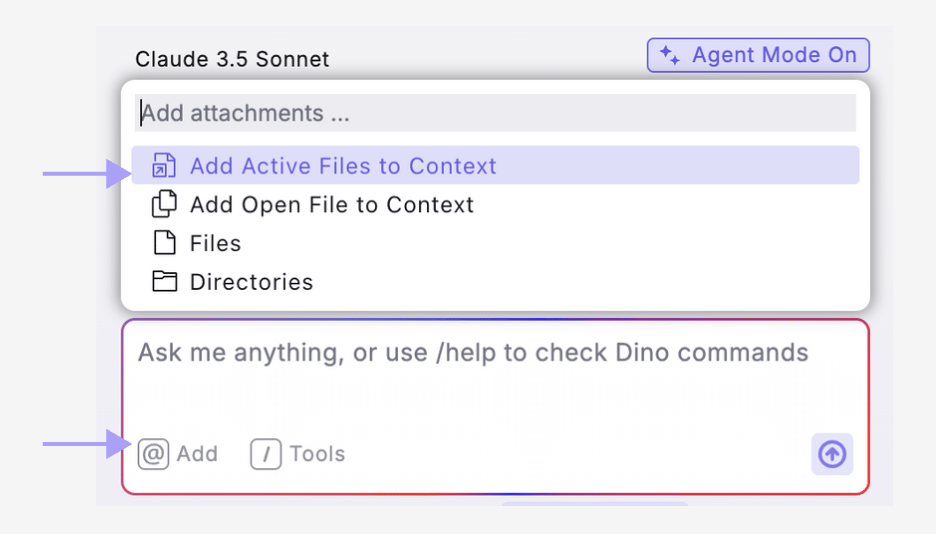
1. Active Files
Use case: Focus on all files currently open in your editor tabsHow to use:
- Have multiple files open in editor tabs
- Click the DinoAI icon (🪄) on the right panel of the Code IDE
- Click the ”@” symbol and “Add Active Files to context”
- Add your prompt
2. Open Files
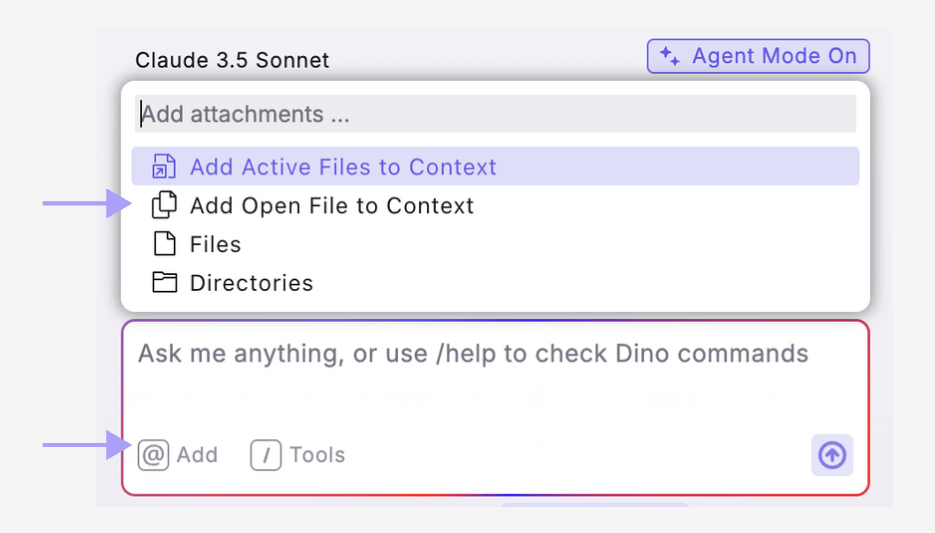
Use case: Focus exclusively on the single file currently selected in your editorHow to use:
- Have a file open and selected in your editor
- Click the DinoAI icon (🪄)
- Click the ”@” symbol and “Add Open File to context”
- Add your prompt
3. File Selection
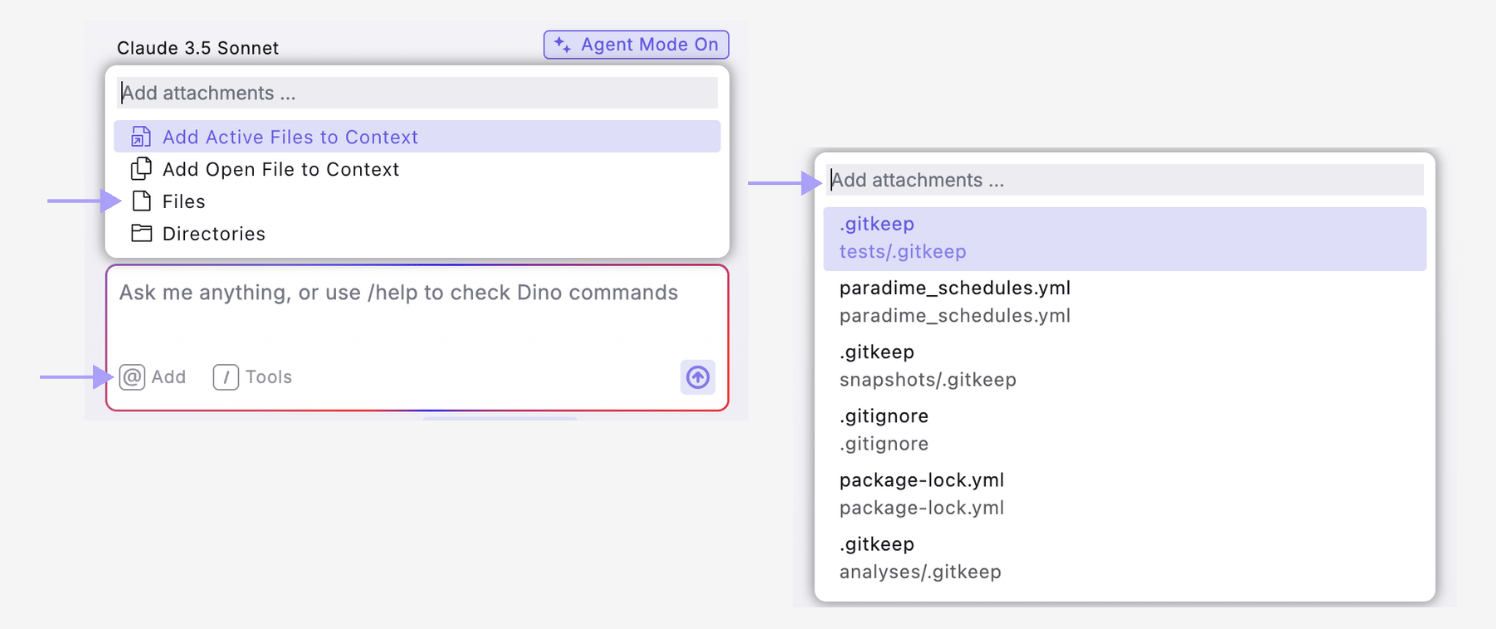
Use case: Focus on specific file(s) not currently open in editorHow to use:
- Click the DinoAI icon (🪄)
- Click the ”@” symbol and “Files”
- Search and/or select the file(s) to add as context
- Add your prompt
File Context in Action
Here’s how File Context improves DinoAI’s results:Without Context
With File Context
Best Practices
- Provide example files that demonstrate the patterns you want DinoAI to follow
- Add relevant context only - too many files can dilute the focus
- Include both SQL and YAML files for comprehensive context
- Start with high-quality examples - DinoAI will follow the patterns it sees