October 20, 2026
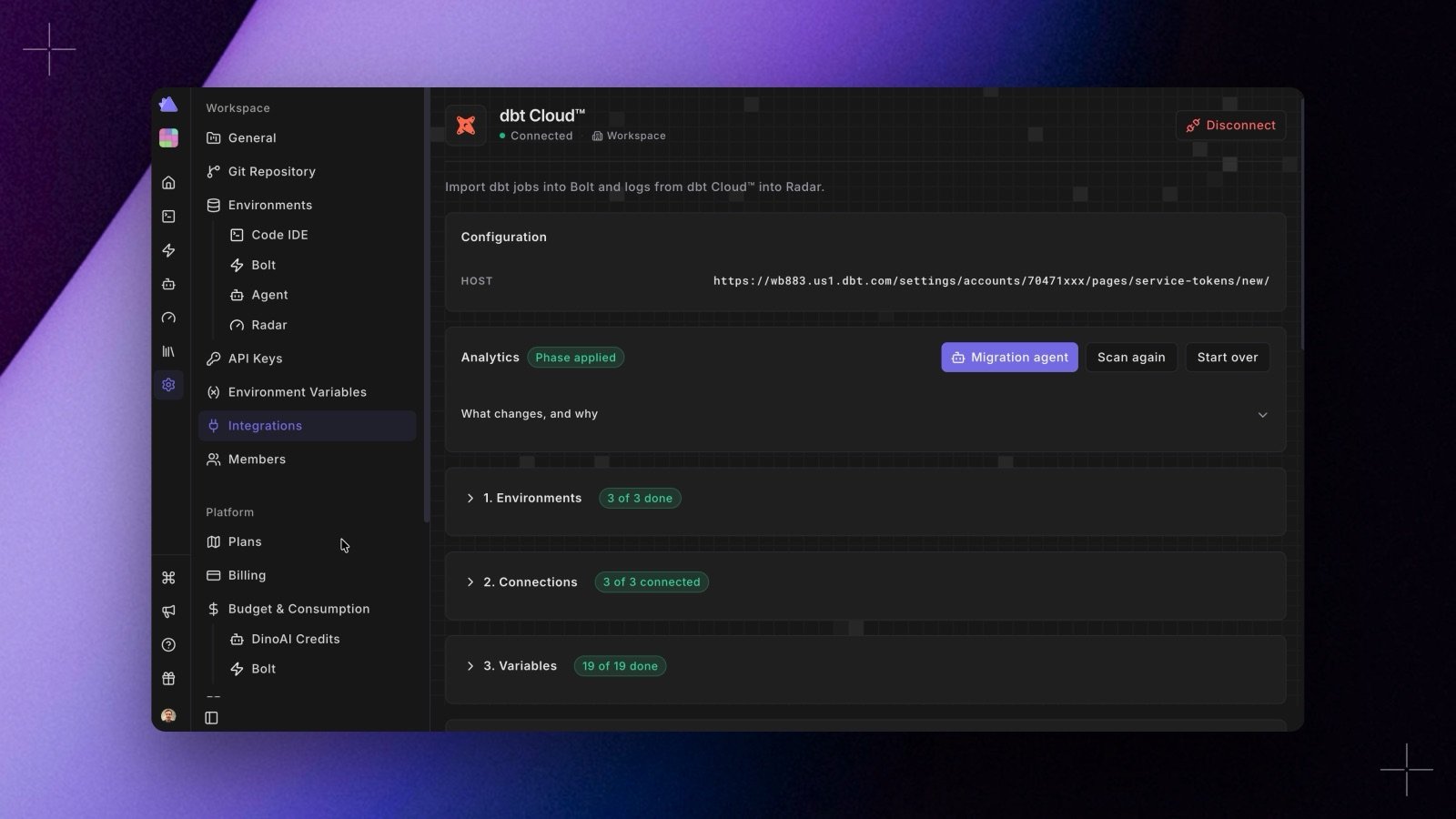
The dbt Cloud™ integration page with the migration checklist: Environments 3 of 3 done, Connections 3 of 3 connected, Variables 19 of 19 done, and the Migration agent button
You can now move a dbt Cloud™ project to Paradime step by step, from Settings > Integrations > dbt Cloud™. Connect with a dbt Cloud™ token, choose the project, and review what each job, environment, and variable becomes before anything is created. Migrate step by step opens a checklist with five phases:
  1. Environments: map each dbt Cloud™ environment to a Paradime environment, create a new one, or skip it.
  2. Connections: the warehouse connection form opens pre-filled from dbt Cloud™. You add the secrets.
  3. Variables: apply or change each value one by one, and enter secrets.
  4. Schedules: every job becomes a Bolt schedule, with its triggers and deferral, and starts suspended.
  5. Verify: dbt debug and dbt compile checks run in Bolt, and each check links to its run.
Then switch jobs over one group at a time. A group is a job plus the jobs that run after it. Paradime checks the group, turns the dbt Cloud™ jobs off, and turns the Bolt schedules on. Compare runs puts the latest run from each product side by side, and Roll back undoes a switch. The built-in DinoAI migration agent works in a drawer next to the checklist. It explains each gap and asks you to decide. It takes secrets through a secure form, and it can’t apply a phase or switch jobs until you approve. A job that waits for a job in another dbt Cloud™ project gets its trigger once that project is migrated too. Admins can start a migration. See Migrate step by step. Shipped in Paradime v6.20.0.