

What are Sequence Diagrams?
Marmaid’s Sequence diagrams are interaction diagrams that depict how processes interact with one another in a time-ordered sequence. They are widely used in system design, workflow analysis, and documenting user interactions. Each participant or actor is represented, and the sequence of messages exchanged between them is visualized to provide insights into the flow of information. Sequence diagrams are particularly useful for:- Visualizing the flow of messages in a system.
- Clarifying system requirements and interactions.
- Documenting complex workflows.
- Debugging and optimizing processes.
Creating Your First Sequence Diagram
- Launch DinoAI: From Code IDE, access DinoAI to start creating diagrams.
- Use a Simple Prompt: Tell DinoAI what kind of Sequence Diagram you want to create. For example:
- Get Your Diagram: DinoAI will generate a complete
.mmdfile with proper Mermaid syntax. - Preview Your Work: Click the eye icon (👁️) to preview your diagram in real-time as you edit.
- Iterate and Refine: Modify the generated
.mmdfile directly, or ask DinoAI to make specific changes.
Example:
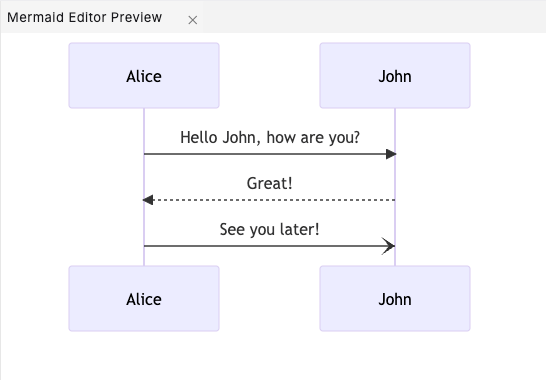
Reusable Sequence Diagram prompts for you and your teamYou can create custom, standardized .dinoprompts for Mermaid’s Sequence Diagram that ensure consistency across your data team. See step-by-step guide.
Diagram Syntax Guide
Basic Syntax
Define participants and the interactions between them:Participants
Participants can be implicitly created or explicitly defined: Participants represent entities that interact within the sequence. They can include:- Users
- Systems or subsystems
- External services
- Devices
Actor Symbols
Actors can be specified explicitly to use the actor symbol: Actors are visually distinct from participants to represent active agents more prominently.Message Arrows
Sequence diagrams support various message types with different arrow styles:->: Solid line without arrow-->: Dotted line without arrow->>: Solid line with arrowhead-->>: Dotted line with arrowhead-): Solid line with open arrow (asynchronous)--): Dotted line with open arrow (asynchronous)
Advanced Message Features
- Activations: Highlight active participants during a message exchange:
- Stacked Activations: Multiple activations for the same participant:
Notes
Add notes for additional context:Conditional and Loop Blocks
- Loops: Repeated interactions:
- Conditionals: Alternate paths:
Parallel and Critical Regions
- Parallel Actions: Show simultaneous actions:
- Critical Sections: Represent mandatory sequences:
Data Team Examples
ETL Workflow
System Monitoring
Best Practices
- Use clear labels: Ensure participants and messages are descriptive and unambiguous.
- Keep diagrams concise: Avoid overloading with unnecessary details.
- Group participants logically: Arrange participants in a meaningful order.
- Use notes for clarity: Add notes to explain complex interactions.
- Regular updates: Keep diagrams up-to-date to reflect current workflows.
Advanced Features
Styling
Customize sequence diagrams with CSS for a polished appearance:Sequence Numbers
Show sequence numbers for message arrows:Highlighting Regions
Highlight specific interactions with colored backgrounds:Additional ResourcesFor more syntax options and advanced features, visit the official Mermaid documentation.