November 26, 2026
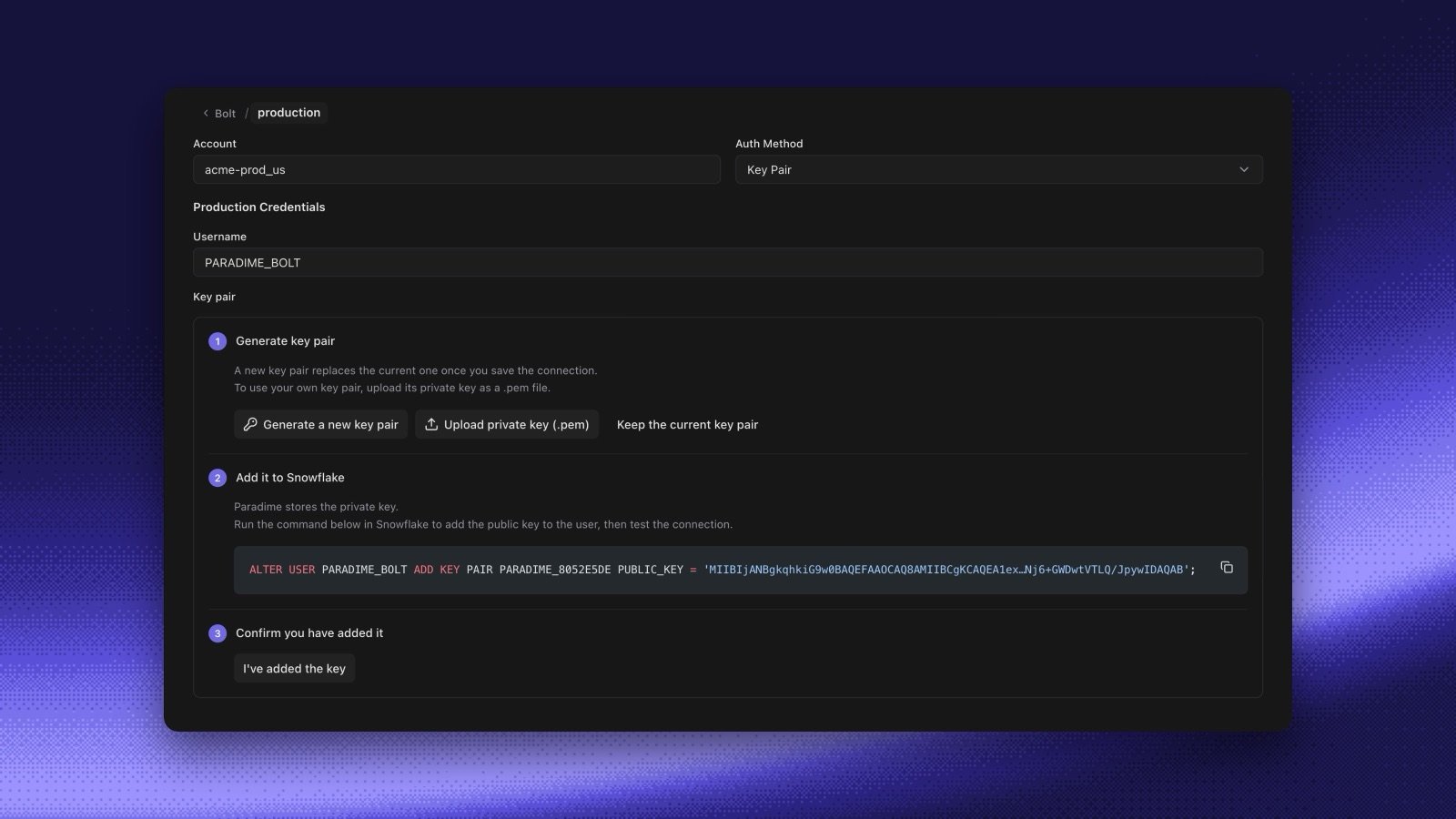
A Bolt Snowflake connection form with Auth Method set to Key Pair and the Key pair steps: Generate key pair with the Generate a new key pair, Upload private key (.pem) and Keep the current key pair buttons, Add it to Snowflake with the command ALTER USER PARADIME_BOLT ADD KEY PAIR PARADIME_8052E5DE PUBLIC_KEY = '...' and a copy button, and Confirm you have added it
Snowflake connections that use Key Pair authentication no longer need you to make a key with OpenSSL. In the connection form, Paradime generates an RSA key pair for you, or you upload your own private key. The private key stays on the Paradime side and never reaches your browser.
  • One command in Snowflake. The form shows the ALTER USER ... ADD KEY PAIR statement that adds the public key to your Snowflake user. Run it, then save the connection. Radarโ€™s cost connection shows a full setup script that ends with this statement.
  • Upload your own key. Upload a .pem, .p8, or .key RSA private key of at least 2048 bits. For an encrypted key, enter its passphrase. Paradime doesnโ€™t keep the passphrase.
  • Everywhere you connect Snowflake. Key pairs work in the Code IDE, Bolt, DinoAI agent, and Radar connections. A copied connection keeps its key pair.
  • Rotate when you need to. Click Generate a new key pair, or upload a new key, then save.
See Snowflake key-pair authentication. Shipped in Paradime v6.28.0.